Loading...

Product
Core Features
Top Extensions
Company
Subscribe to our newsletter.
Get product updates and news in your inbox. No spam.

This is a raycast extension with commands for the note taking and knowledge management app Obsidian. To use it, install the extension from the Raycast Store, open Raycast Search and type one of the following commands.
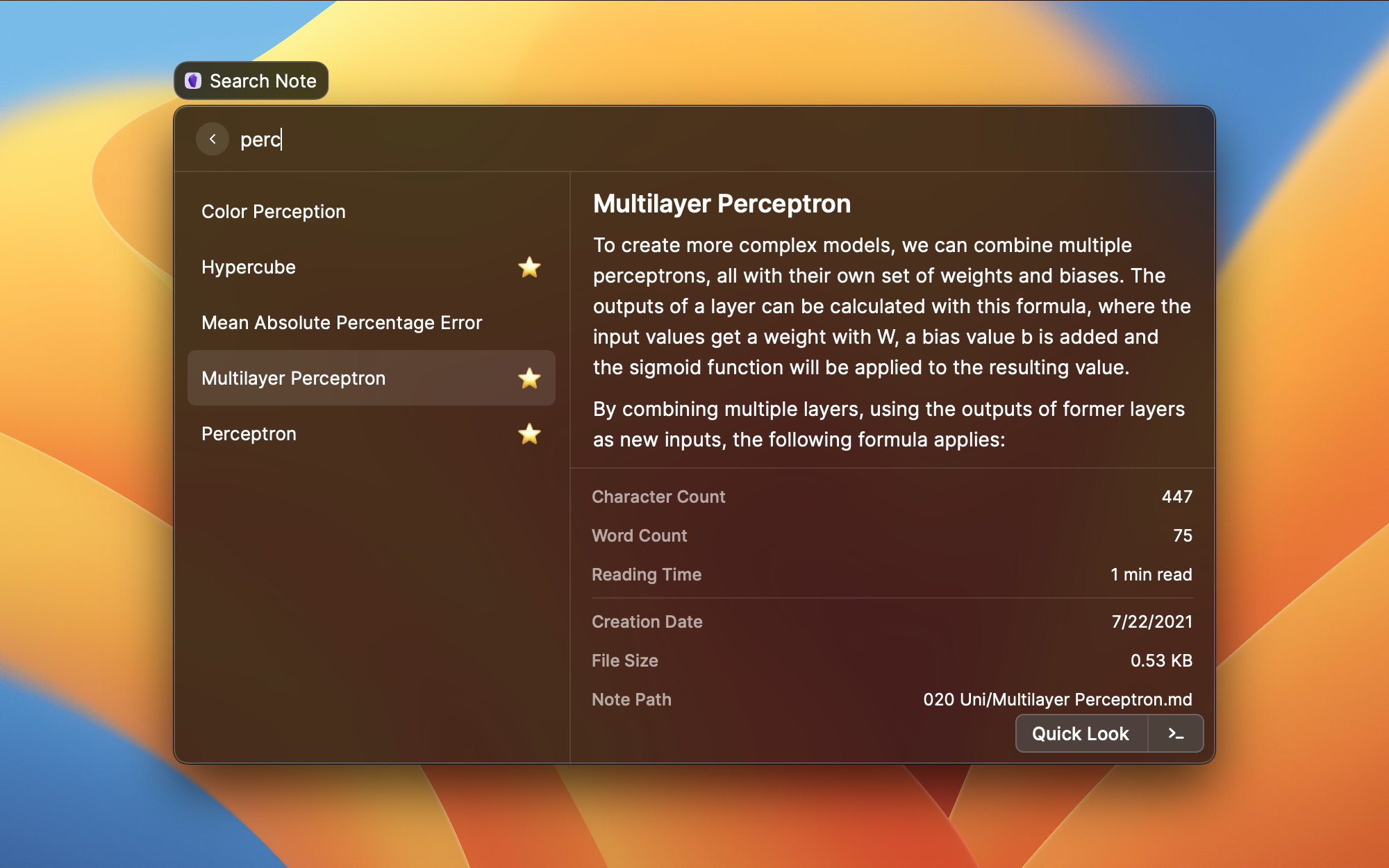
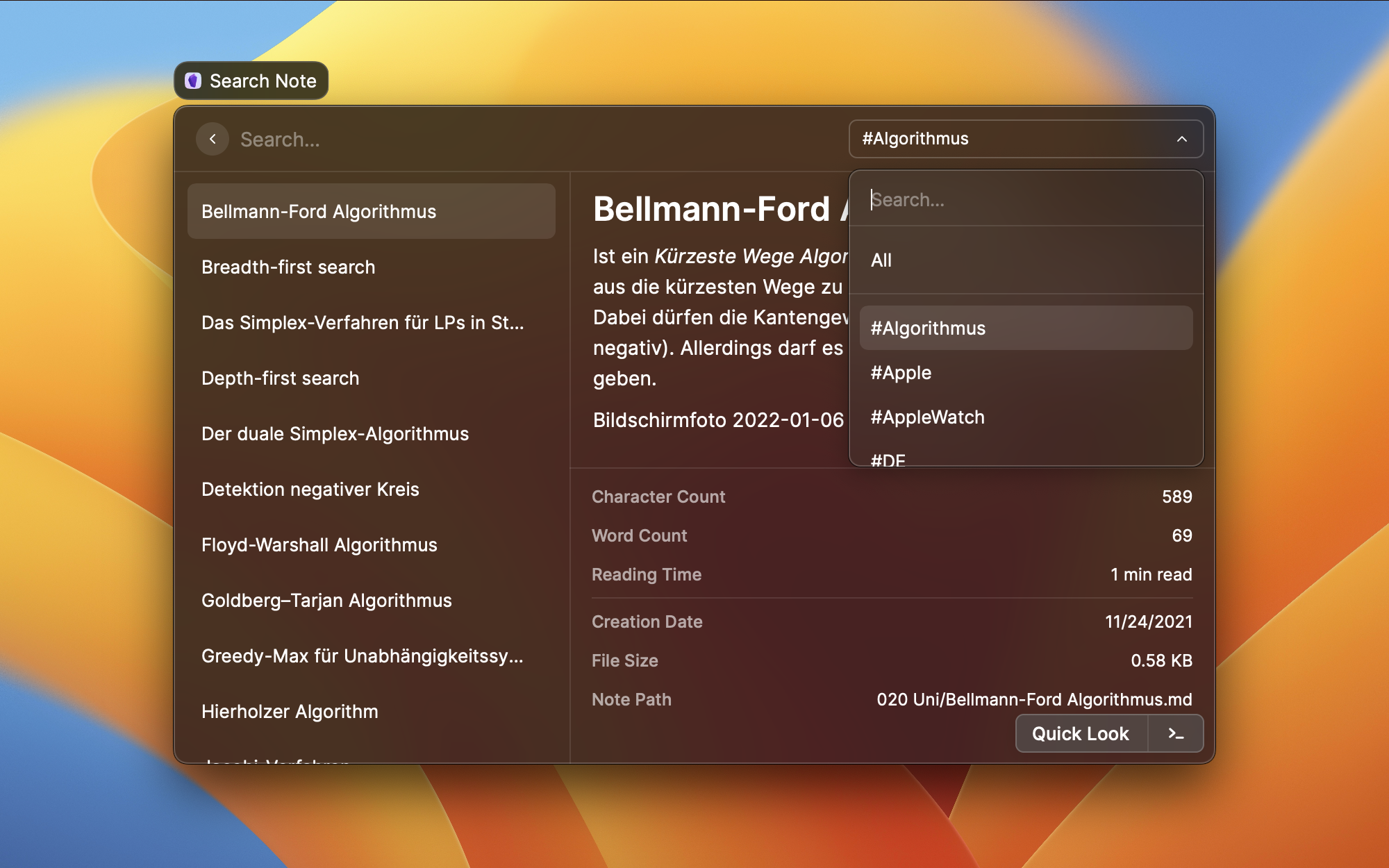
This command allows for quick access to all of your notes. By default you can search notes by title. Enabling content search in the commands preferences allows you to search for notes by their content and title. If there doesn't exist a note with the title you searched for you can create a new note with that title right from the command. Use the tag filter in the top right corner to filter notes based on their tags (both YAML frontmatter and inline tags).
When content search is enabled, each exact occurrence is shown as a separate result with its line, column, and nearby context. The Open Match in Obsidian action opens the note and selects the matching text. Existing primary-action preferences continue to control which action runs when pressing Enter.
Exact navigation requires Obsidian 1.12.7 or later. In Obsidian, open Settings > General > Advanced and enable Command line interface. Search and match previews continue to work without the CLI; it is only required when opening an exact occurrence.
Enabling Show Detail and Show Metadata in the extensions preferences will show a sidebar view with the following information:
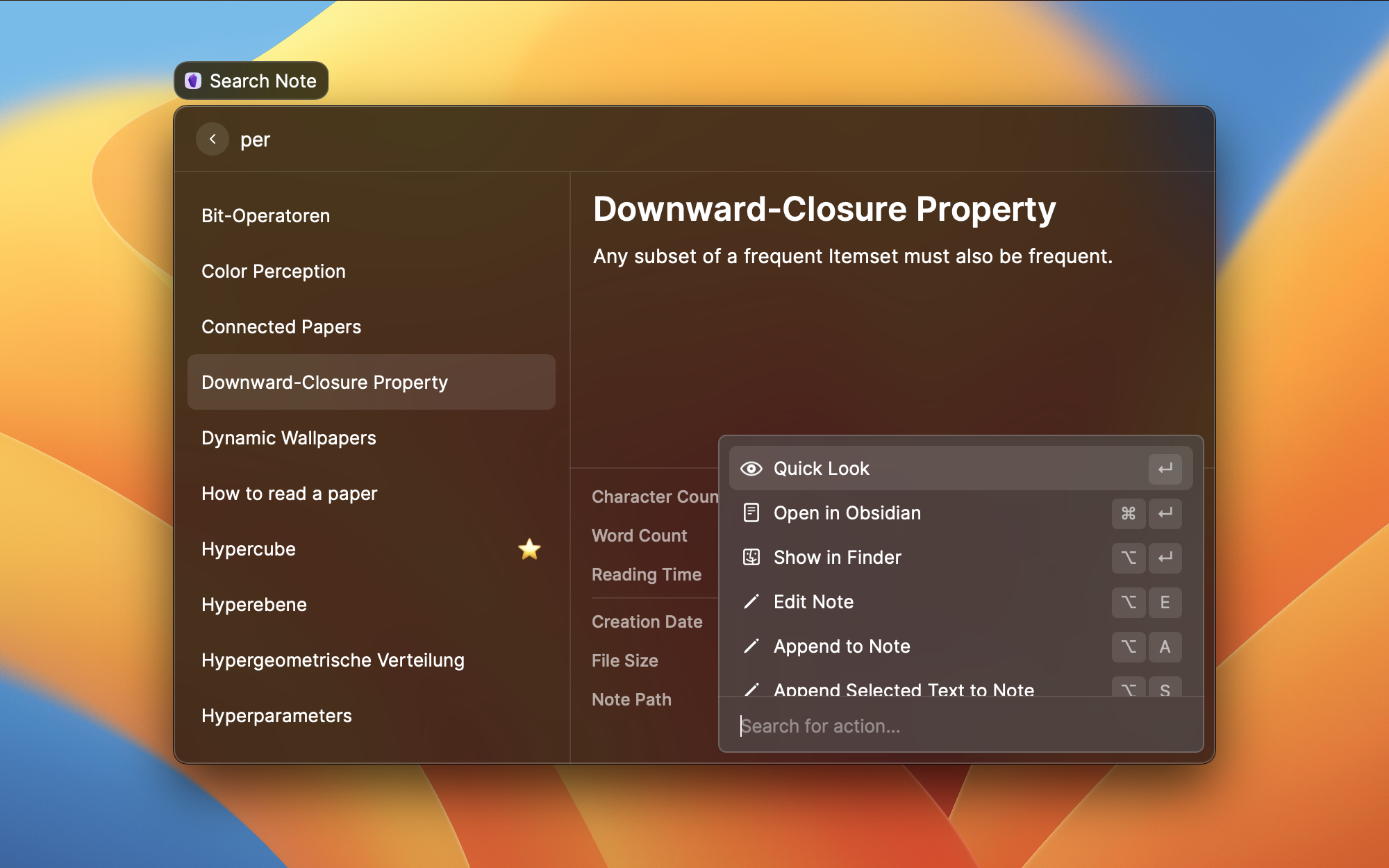
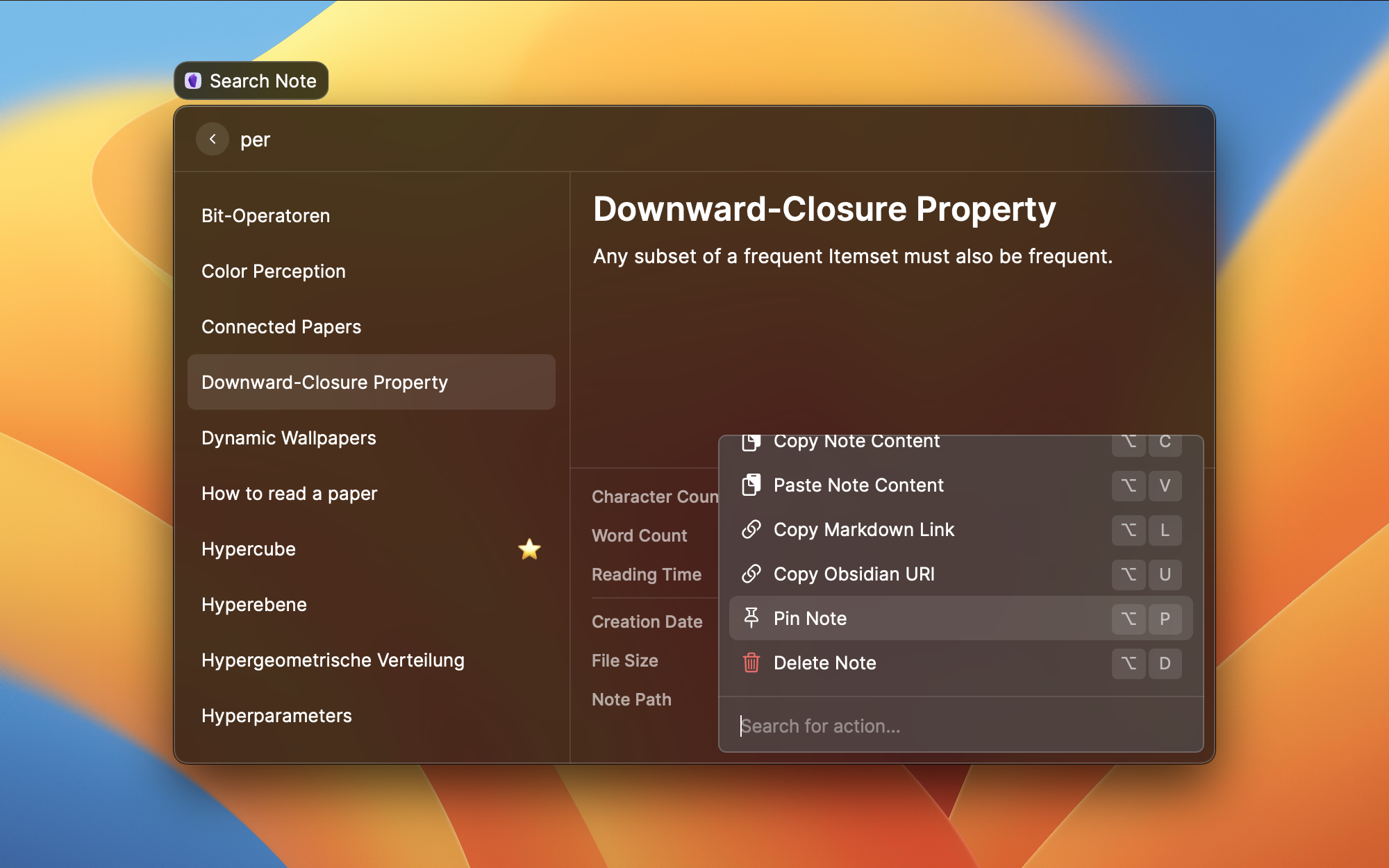
It features several actions which you can trigger with these keyboard shortcuts (or search for them with cmd + k):
Open Note Actions: Depending on the primary action set in preferences, the keyboard shortcuts can be different.
enter on a content occurrence will open and select the exact match when Open in Obsidian is configured as the primary actionenter on a regular note result will open the note in "Quick Look" by defaultcmd + enter will open the note in ObsidianOpen in new Pane will open the note in a new pane in Obsidian (only for vaults with advanced-uri plugin)Other Actions:
opt + enter will open the notes path in Finderopt + e will let you edit the note (supports templates)opt + d will let you delete the noteopt + a will let you append text to the note (supports templates)opt + s will append selected text to the note (supports templates)opt + c will copy the notes content to your clipboardopt + t will copy the notes title to your clipboardopt + v will paste the notes content to the app you used before raycastopt + l will copy a markdown link for the note to your clipboardopt + u will copy the obsidian URI for the note to your clipboard (see: Obsidian URI)opt + p will bookmark a noteopt + p will "unbookmark" a bookmarked noteThe primary action (enter) can be changed in the extensions preferences.
The Quick Look actions will open your note in Raycast itself.
This command allows for quick access to all of the media (images, video, audio and PDFs) in your vaults.
Use the type filter in the top right corner (cmd + p) to filter the media by its type / file extension.
It features several actions which you can trigger with these keyboard shortcuts (or search for them with cmd + k):
enter will open the file in Apples Preview appcmd + enter will open the file in Obsidian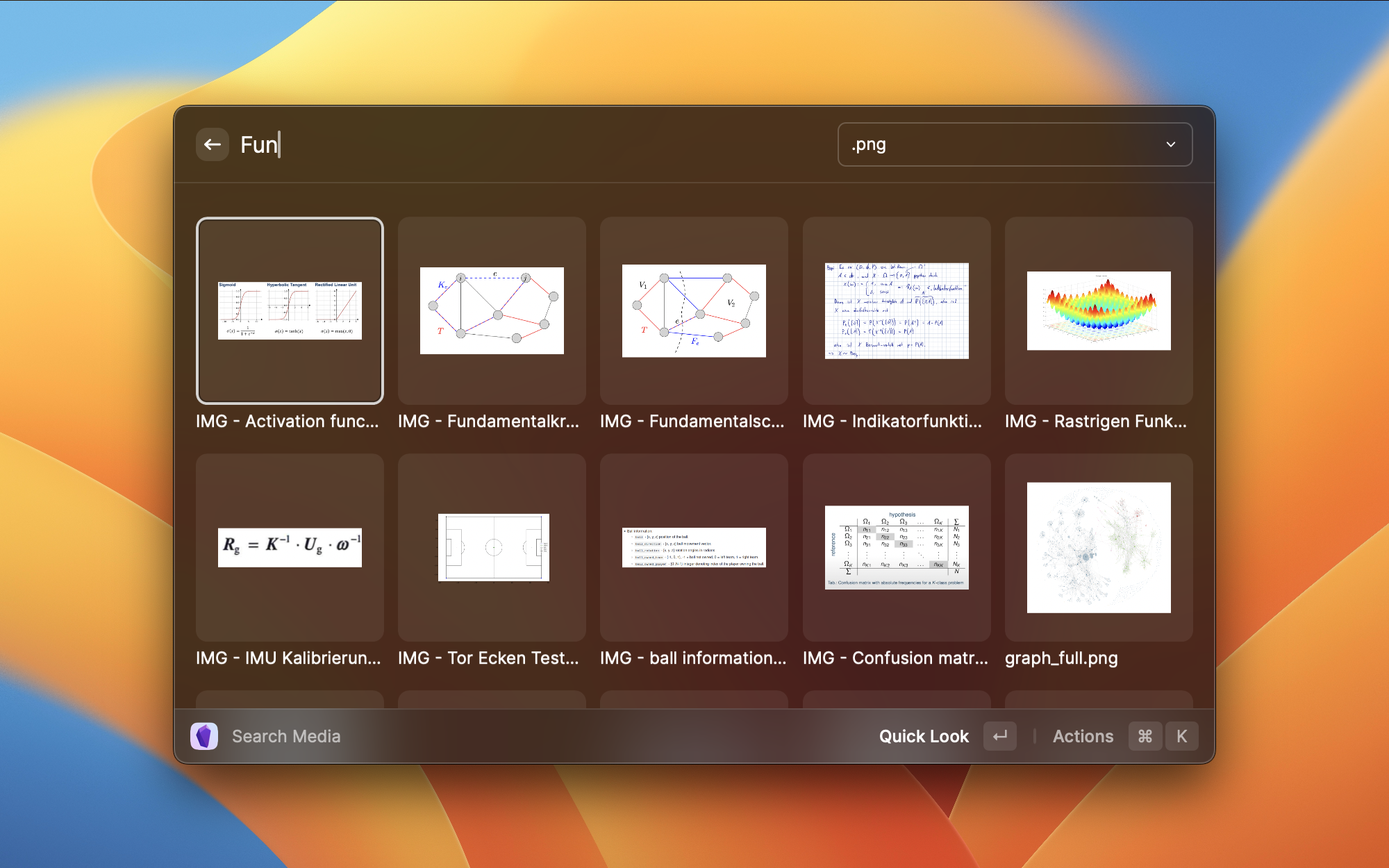
This command will open a random note of a previously selected vault in Quick Look where all actions from the Search Note command are available.
This command will show a list of all of your Obsidian vaults which you can open by pressing enter.
Actions that you can trigger with a keyboard shortcut:
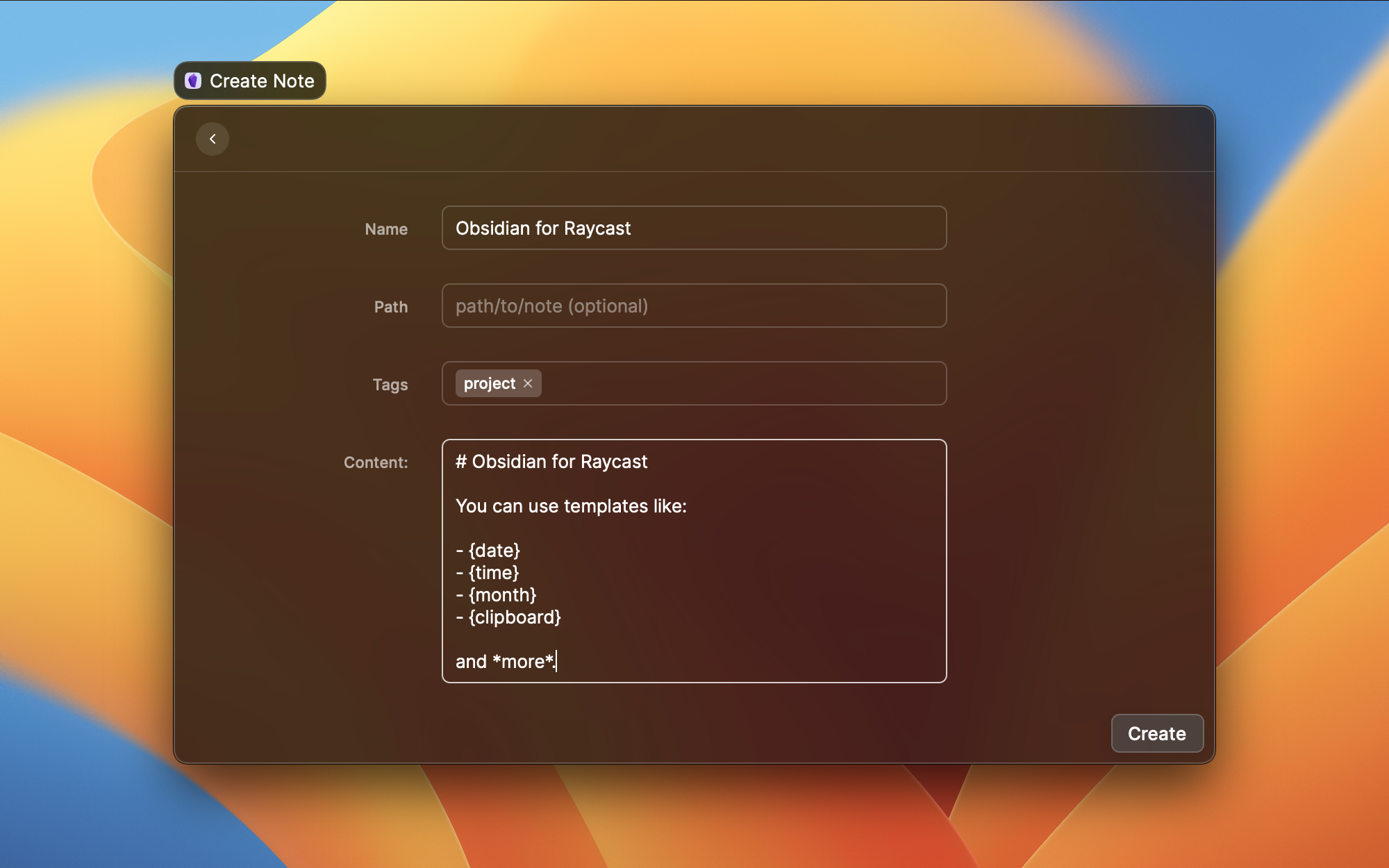
cmd + enter will open the vaults folder in the Finder appThis command lets you create new notes on the fly by entering a name, optionally a path to a subfolder in your vault and some content. You can use the tag picker to add tags to the notes YAML frontmatter.
Both the note name and note content support these templates:
{date}{time}{year}{month}{week}{day}{hour}{minute}{second}{millisecond}{timestamp}, {zettelkastenID}{clipboard}, {clip}{selection}, {selected}{\n}, {nl}, {newline}But also the table of tokens defined in the luxon documentation (such as dd, MM, YYYY,...).
This command will open the daily note from the selected vault. If a daily note doesn't exist it will create one and open it. It requires the community plugin Advanced Obsidian URI and the core plugin "Daily notes" to be installed and enabled.
This command will append text to the daily note from the selected vault. If a daily note doesn't exist it will create one and open it. To append as efficiently as possible, the text is provided as a parameter to the command, so there's no form to fill out.
It requires the community plugin Advanced Obsidian URI and the core plugin "Daily notes" to be installed and enabled.
This command allows you to create your own "Append to Note" actions. You can configure specific notes, templates, and behaviors, and even assign global keyboard shortcuts to them.
Create New Action command (CMD+N in the list) to define a new action.{date}, {year}, {week}).{clipboard}, {content}).Action Types:
{content} placeholder in your template.This command will open a list of your bookmarked notes. All actions and preferences from the Search Note command are available. Bookmarking or unbookmarking a note will reflect in Obsidians Bookmarked notes. Bookmarking a note in Obsidian will also reflect in Raycast.
Additional actions:
opt + r will reset all bookmarked notes for the selected vault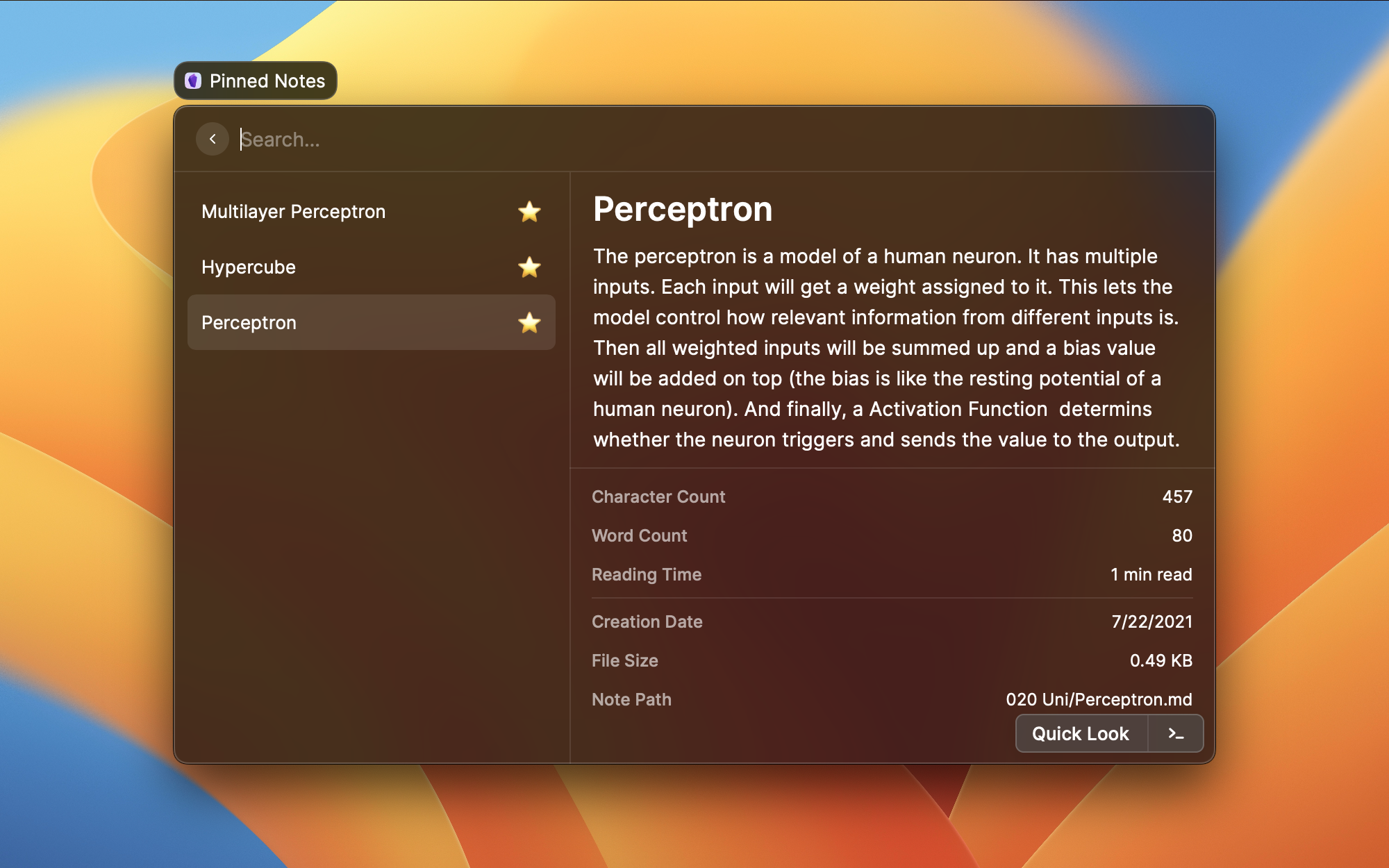
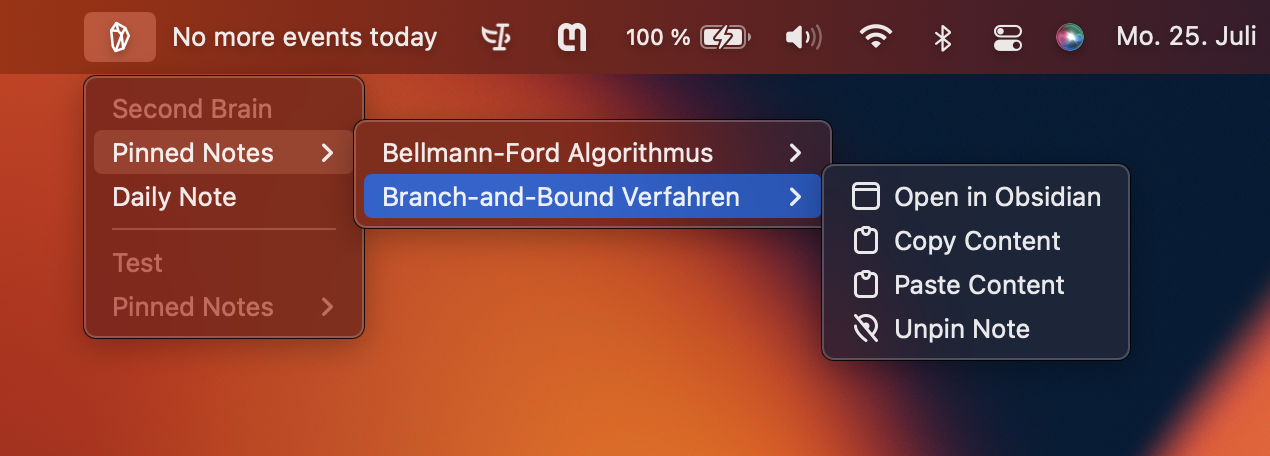
Use this command to add a menu bar item to the top of the screen (Obsidian icon). Clicking it will reveal a list of your vaults. You can view your bookmarked notes, perform actions on them or open a daily note.
~/Library/Application Support/obsidian/obsidian.json, which contains all vaults that have been opened with Obsidian before.enter)- [ ] to create a checklist item)enter)enter)This project is not affiliated, associated, authorized, endorsed by, or in any way officially connected with Obsidian. The official Obsidian website can be found at https://obsidian.md. "Obsidian" as well as related names, marks, emblems and images are registered trademarks of their respective owners.
Search, open, view, copy, paste and edit any note in Obsidian.
Search, open, view, copy, paste and edit bookmarked notes in Obsidian.
Open a vault in Obsidian.
Open a workspace in Obsidian.
Append text to your daily note
Open daily note in Obsidian. Will create new daily note when it doesn't exist yet.
Create new note
Open random note
Search for media in your vault
See your pinned notes at a glance and control actions from the menu bar.
Append a task to a note of your choice
Manage and run custom append actions
Capture a note, task, or shopping item without the Advanced URI plugin.
searchNote searchContent parameter to false, matching the UI Search Note commandKeyboard.Shortcut.Common.Remove shortcutopt+d shortcut from the Delete Note actionobsidian.json from the per-platform Obsidian config dir[[Note Title]] to clipboard (⌥W)[[Note Title]] into the focused app (⌥⇧W)open -g (background flag) instead of Raycast open() when silent mode is on{year}, {date}) in file paths{selection} and {selected} templates to Create Note command which both get replaced by the currently selected textsearchArgument in MediaGrid value before filteringCopy Note Title action.obsidian config file nameAppend Task command (thanks @mikejongbloet)Silent Mode preference for the Append to Daily Note Command which prevents the command from opening the daily noteBlank Note preference to Create Note command which lets you create a blank note immediatelyCreate Note action to Search Note command which lets you create a new note from the search results if it doesn't exist yetPinned Notes commandStarred Notes command which lists all starred notes of a vaultAppend to Daily Note Command which can append text to a daily note. Text can be appended to the end of the note or to a specific heading. It supports all templates. Contributed by @iancanderson.Copy Code action which either copies a code cell to the clipboard or opens a list to select one of the code cellsPaste Code action which directly pastes code cellsShow Mentioning Notes action which shows all notes that mention the selected noteOpen URL entry to metadata view which opens the url specified in the notes YAML frontmatter for urlSearch Media command to find media that has been mentioned in the query noteSearch Media command which lets you search for media like images, video, audio or pdfs in your vaultImage Size preference for Search Media commandcmd + p) for Search Media commandQuick Look and Open in Obsidian actions for Search Media commandSearch Note, Search Media and Pinned Notes command for quicker searchesOpen in new Pane action if advanced-uri plugin is installed for ObsidianOpen in Obsidian actions and the new Menu Bar ItemSearch Note and Pinned Notes command by tags (YAML frontmatter and inline)Random Note command which opens a random note in Quick Look (all actions available)Edit Note action now supports markdown controls (e.g. cmd + b for bold and cmd + i for italic)Append to Note and Append Selected Text to Note actions now support all templatesAppend to Note and Append Selected Text to Note actions{content} for Append Selected Text to Note action{\n}, {newline}, {nl} for new line{clip} for clipboardDefault Content and Fill Form with Default Values settings for Create Note commandShow in Finder action for all vault selection listsEdit Note action to Search Note and Pinned Notes command which lets you edit a noteEdit Note action supports templatesReset Pinned Notes action for Pinned Notes commandDelete Note action to Search Note and Pinned Notes command which lets you delete a note{clipboard} to available templatesSearch Note and Pinned Notes commandSearch Note and Pinned Notes commandCreate Note command that can be used in the notes name and contentShow in Finder action to Search Note, Pinned Notes and Open Vault commandsPinned Notes command which lists all pinned notes of a vaultPin Note action to Search Note command which pins a noteUnpin Note action to Search Note command which unpins a noteSearch Note and Pinned Notes commandCreate Note command (quickly create a note in a folder)Create Note commandCreate Note commandDaily Note command, opens or creates new daily noteAppend Selected Text to Note action for search commandCreate Note command, lets you create new notesCopy Obsidian URI action for Search Note commandCopy Obsidian markdown link action for Search Note commandOpen Vault command, lets you switch quickly between different vaultsSearch Note commandInitial version